In this article we will look at how to configure an FTP client (Filezilla) to access your seedbox files from your computer.
This FTP client is available on MacOS, Windows and Linux. You can download the version that matches your OS at the following address: Filezilla Download
1. Retrieving your FTP login details#
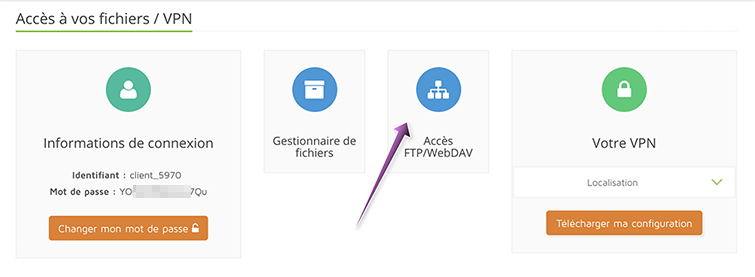
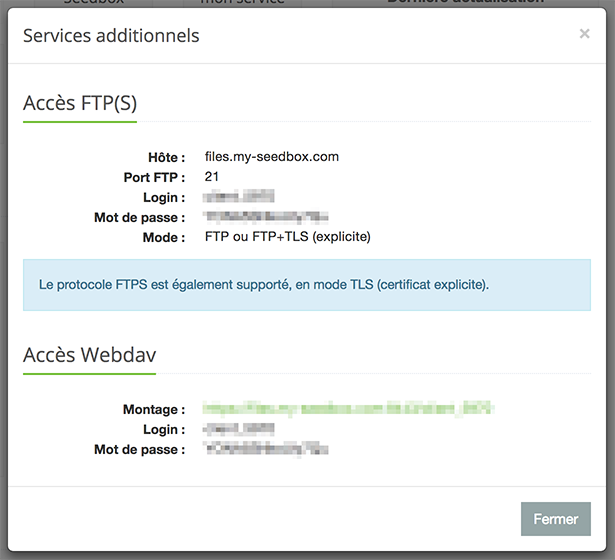
Your FTP login details are available in the management console of your seedbox:
2. Setting up Filezilla#
Setting up the Filezilla client is extremely simple. All you need to do is fill in the fields at the top of the window with the information shown in the previous image.

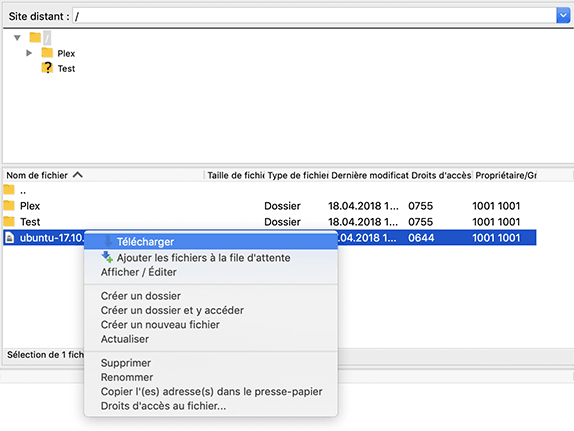
Once connected, the file tree of your seedbox is displayed, and you can then download your files, rename them, and move them.
3. Using Filezilla#
Using the Filezilla client is extremely simple: it works just like your usual file explorer. Moving files is done with a simple drag and drop. The usual options are available with a simple right click on the file or folder in question.