
This guide walks you through setting up and using Jellyfin on your Apple iPad.
Prerequisites#
Before you begin, make sure you have:
- An active Seedbox with My-Seedbox with Jellyfin enabled
- The Jellyfin app (Swiftfin) installed on your iPad (available on the App Store)
- Your credentials available in the FTP, VPN and Jellyfin Credentials section of your customer area
Step 1: First launch of the app#
When you first launch the app, you will see this welcome screen inviting you to connect to a Jellyfin server:
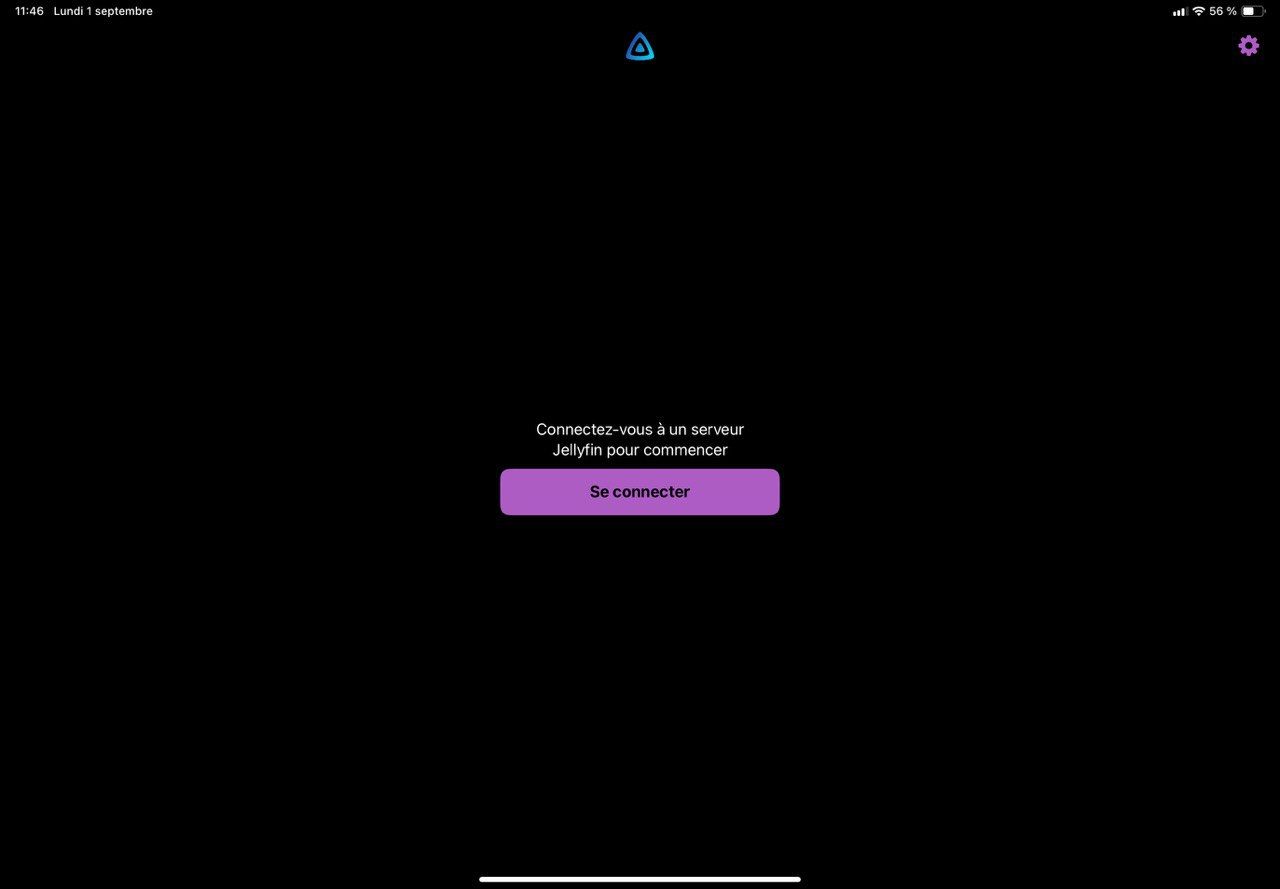
Tap the Connect button to start the setup.
Step 2: Configuring your My-Seedbox server#
The next screen asks for the URL of your Jellyfin server. This information is available in your My-Seedbox customer area.
Example URL:
nhttps://106.mysbx.eu n
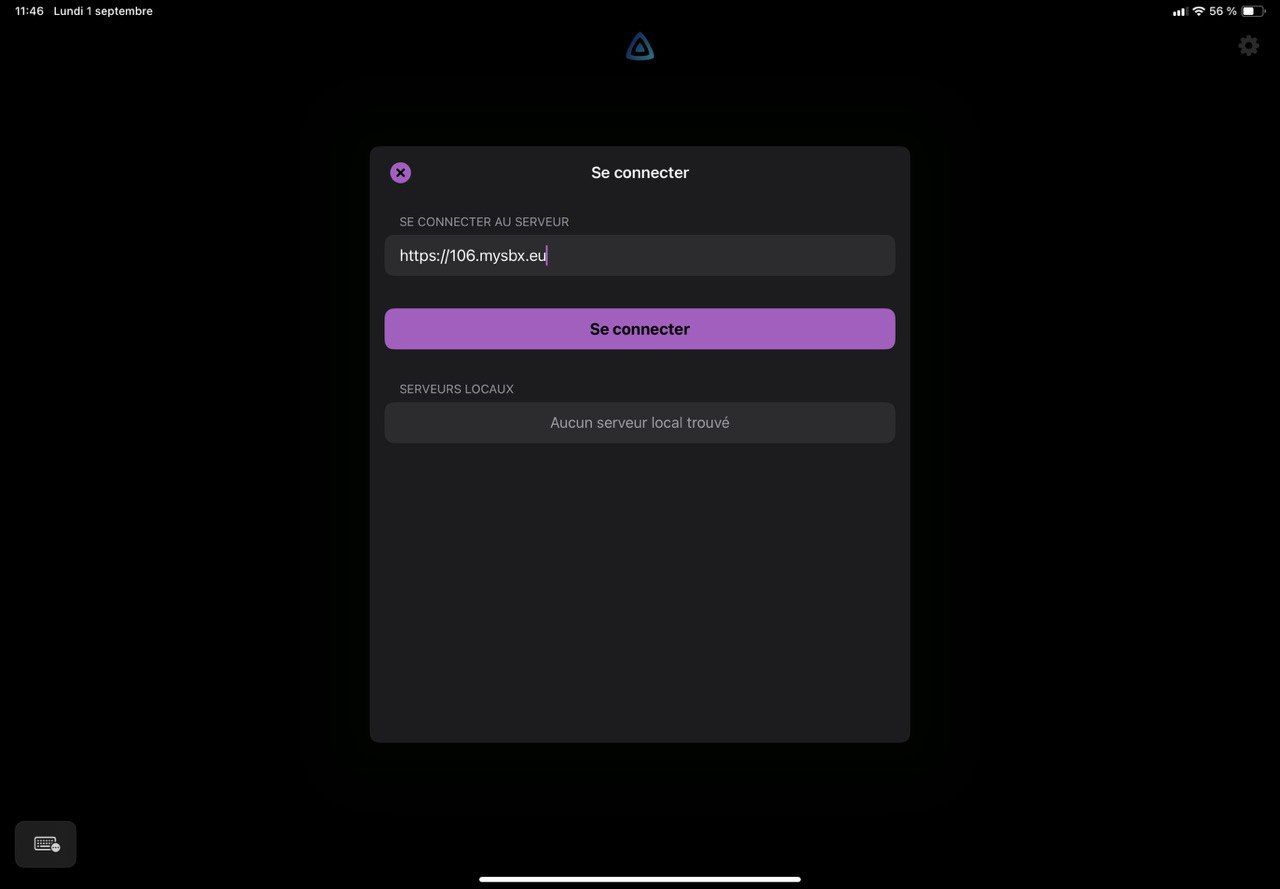
Enter your server URL, then confirm by tapping Connect.
Step 3: Adding your user account#
Once the server is configured, a + icon appears so you can add your user account:
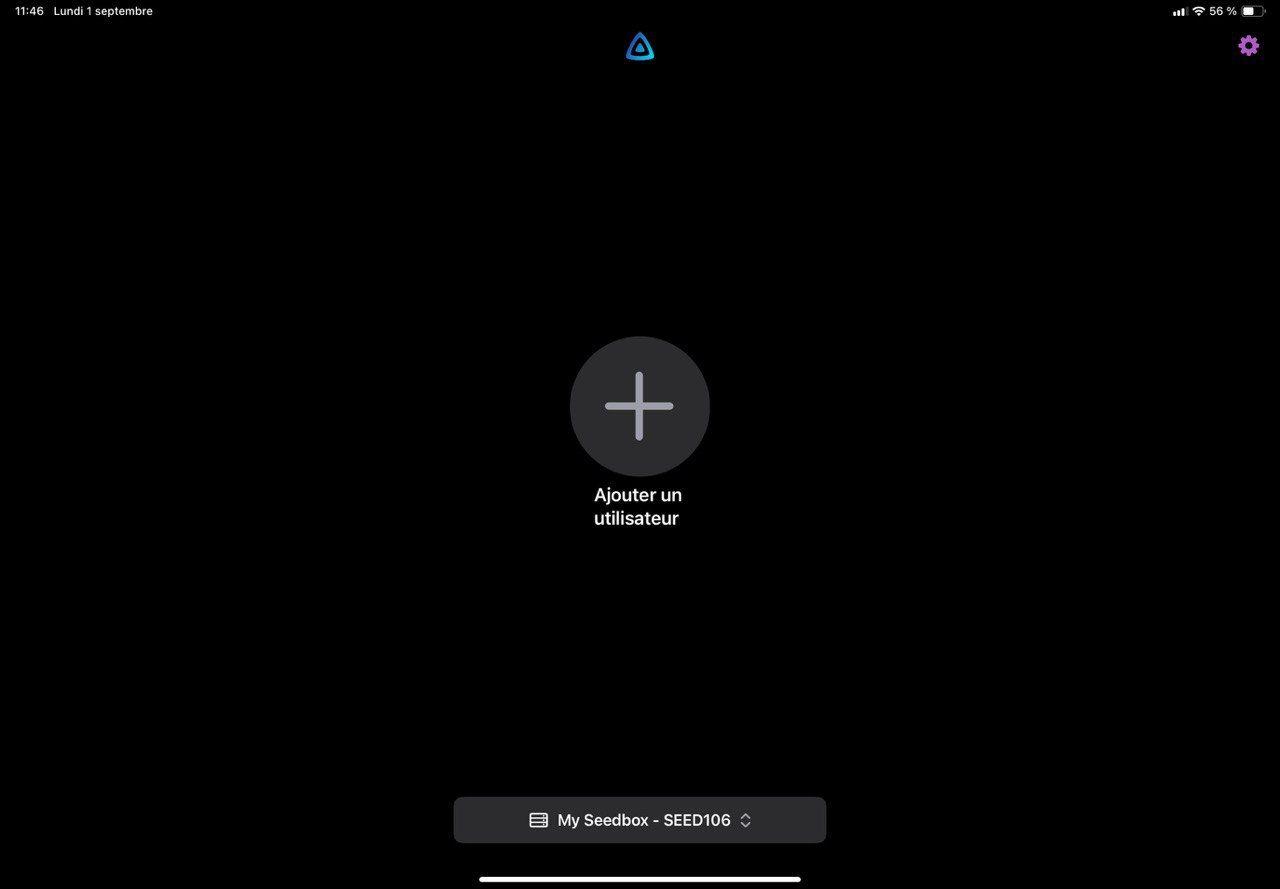
Tap the + icon to open the login form:
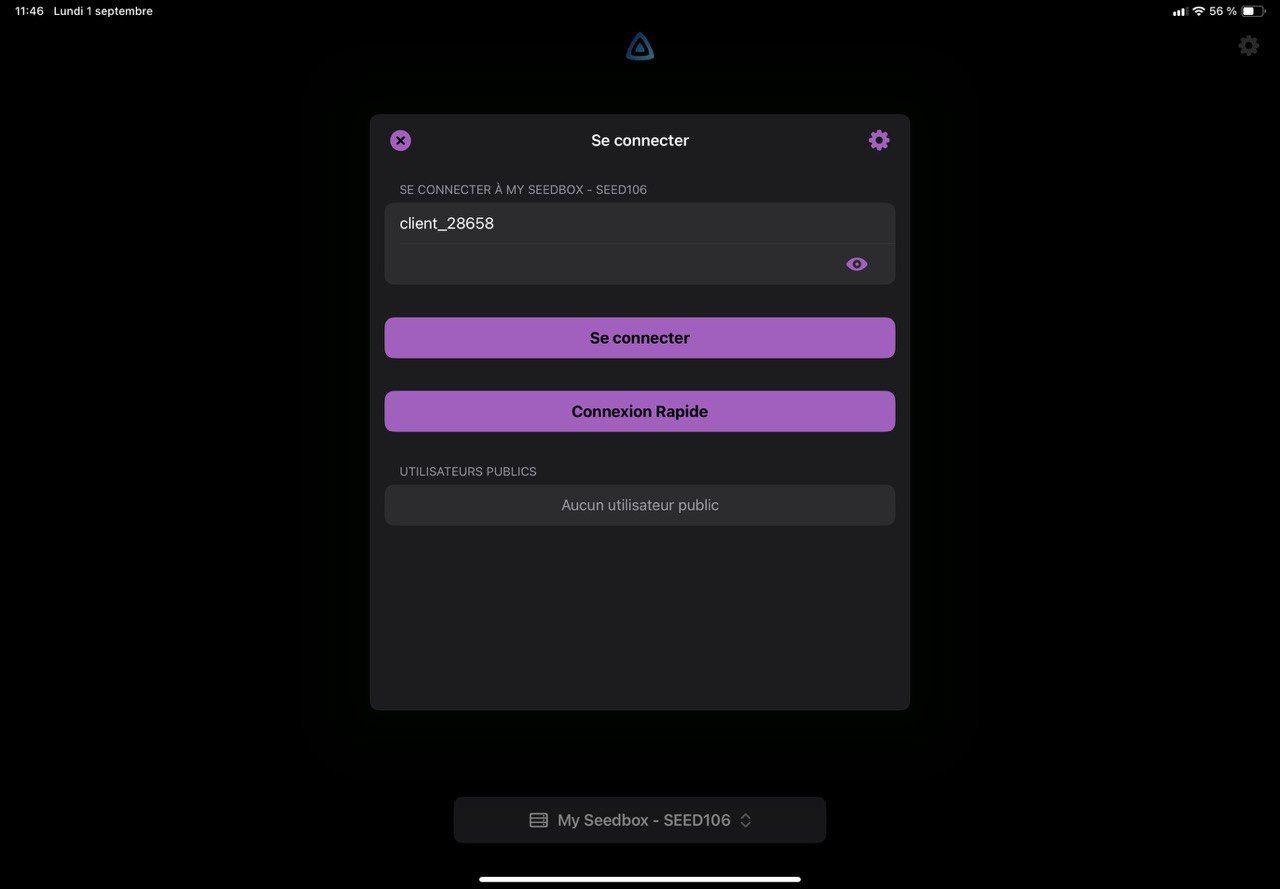
Enter your credentials:
- Username: always starts with the prefix
client_XXX - Password: available on your My-Seedbox dashboard
Once the fields are filled in, tap Connect.
Step 4: Accessing your library#
Congratulations! You are now connected and can access the content of your Jellyfin library:
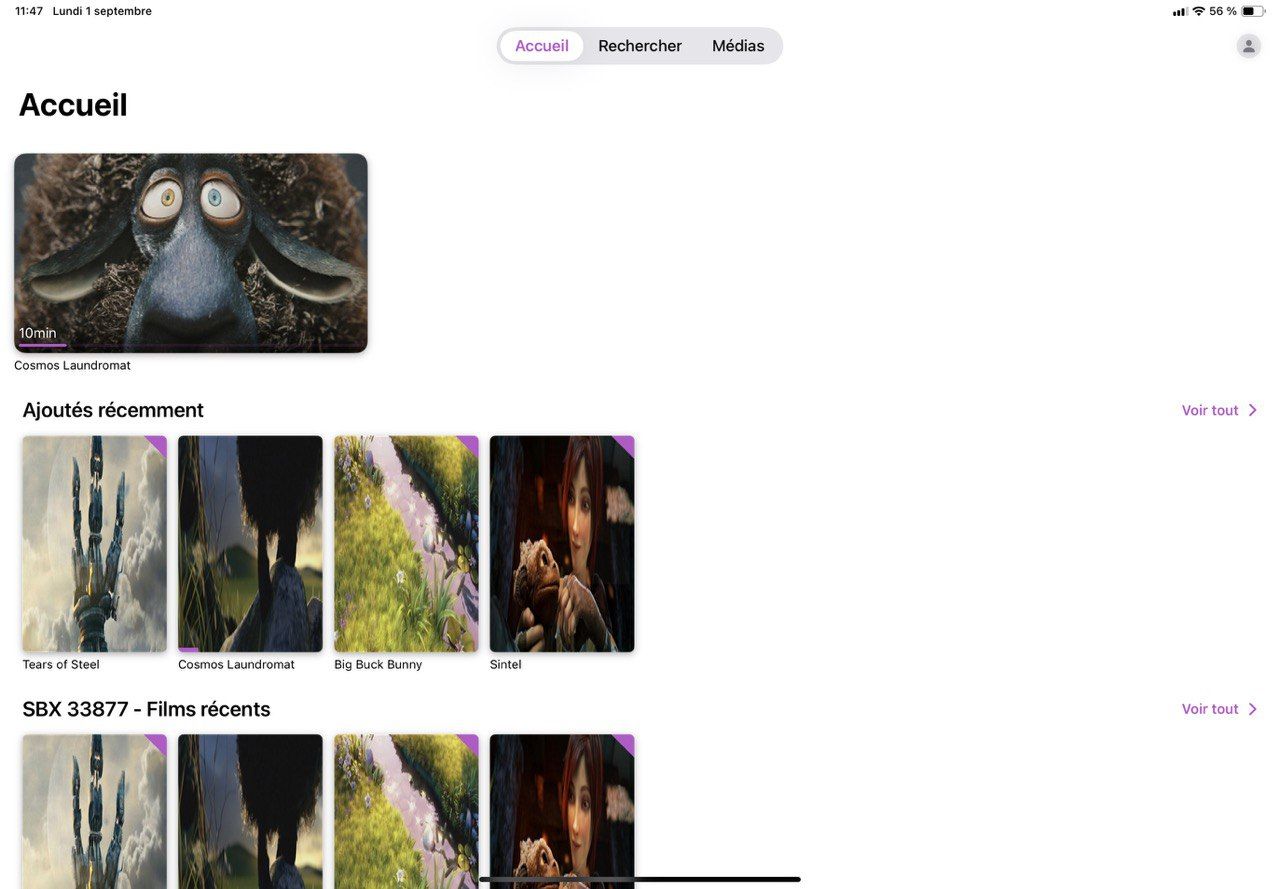
Browsing the library#
To view the details of a file, simply tap it. In this example, we select "Cosmos Laudromat":
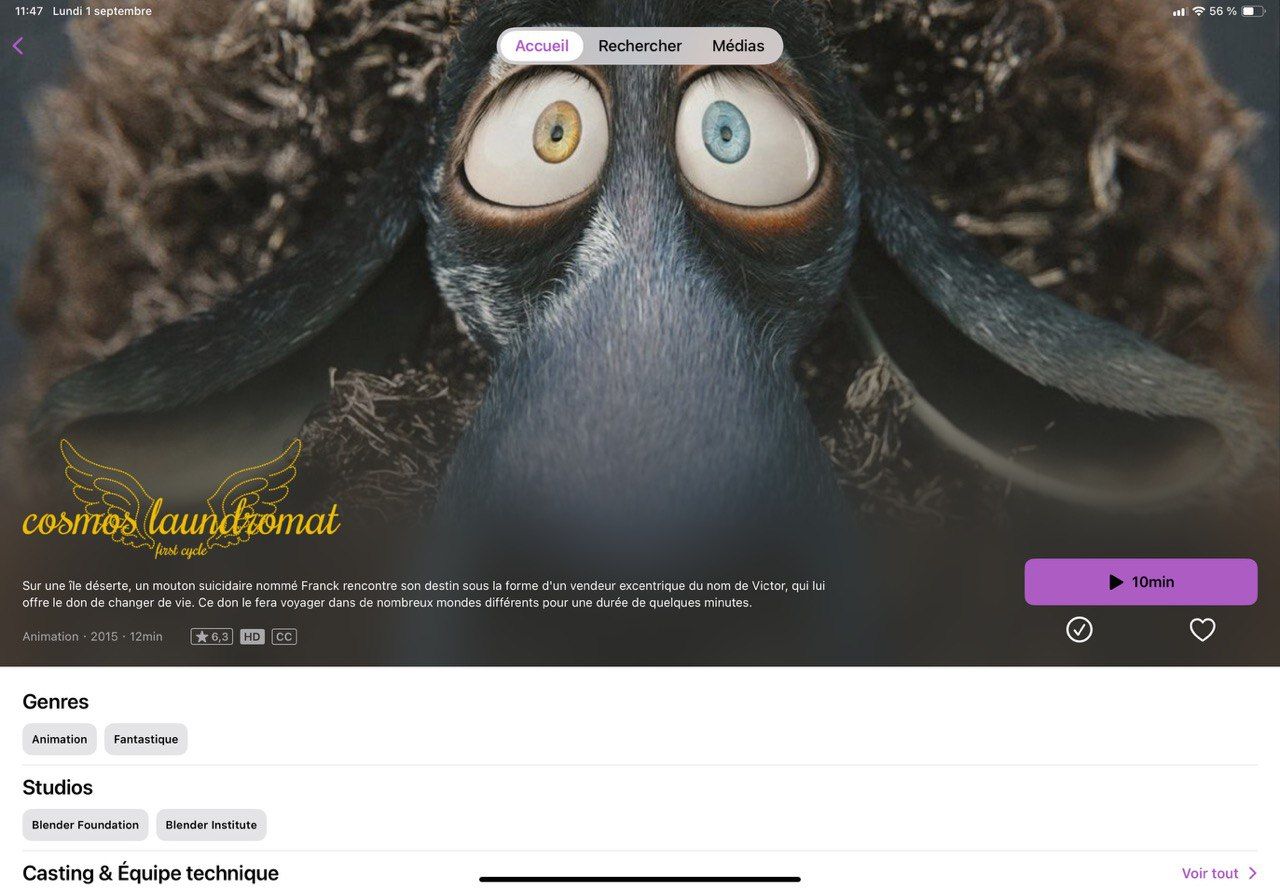
The details page shows:
- The movie information
- A short preview clip
- The play button to start the video
Playing videos#
Tap the play button to start the video:

Your content is now ready to be watched on your iPad!