
This guide walks you through setting up and using Jellyfin on your Apple TV.
Prerequisites#
Before you begin, make sure you have:
- An active Seedbox with My-Seedbox with Jellyfin enabled
- The Swiftfin (Jellyfin) app installed on your Apple TV (available on the App Store)
- Your credentials available in the FTP, VPN and Jellyfin Credentials section of your customer area
Step 1: First launch of the app#
When you launch the app for the first time, you will see this welcome screen inviting you to connect to a Jellyfin server:
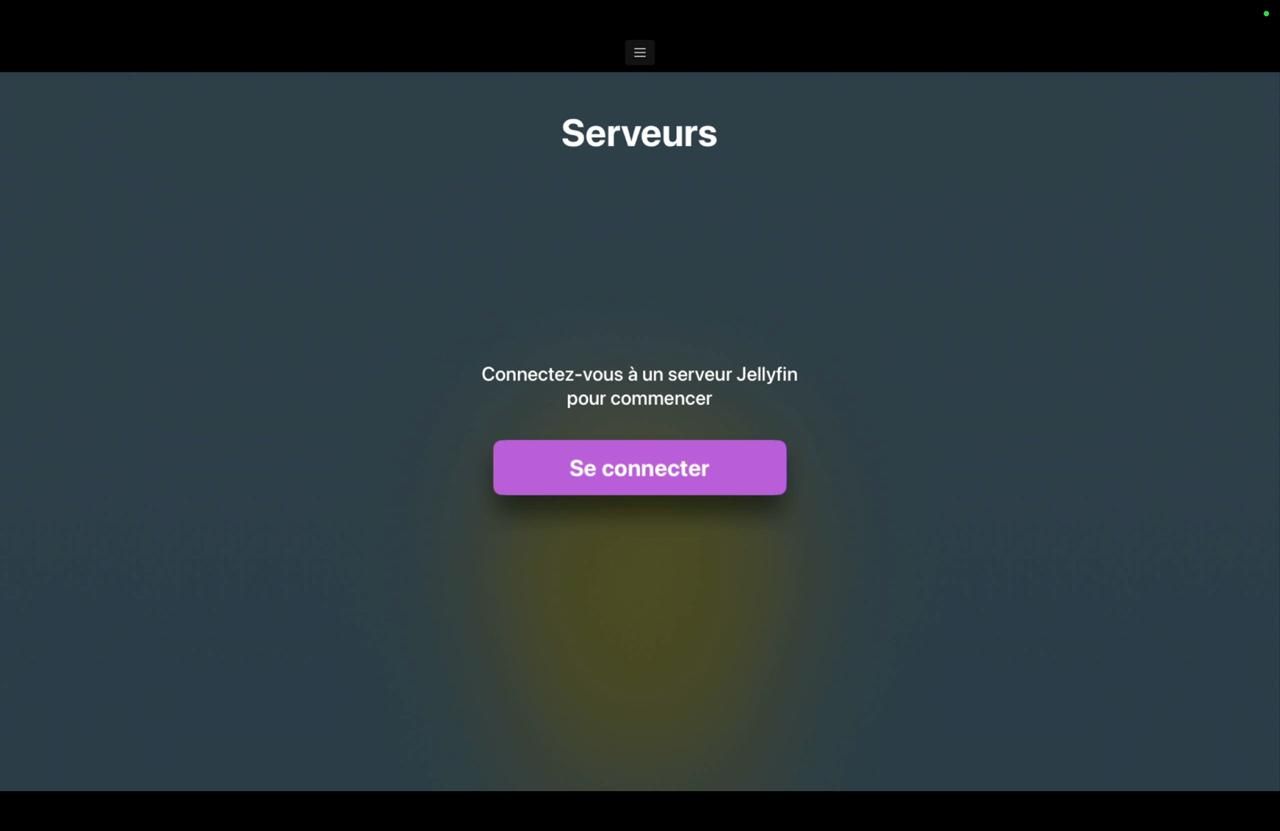
To continue, click Sign In.
Step 2: Configuring your My-Seedbox server#
The screen asks for the URL of your Jellyfin server. This information is available in your My-Seedbox customer area.
Example URL:
https://106.mysbx.eu
Enter your server URL, then confirm by clicking Done.
Step 3: Adding your user account#
Once the server is configured, the next screen lets you add an account.
Method 1: Signing in with a password#
By default, the Apple TV app offers a sign-in with your username and password:
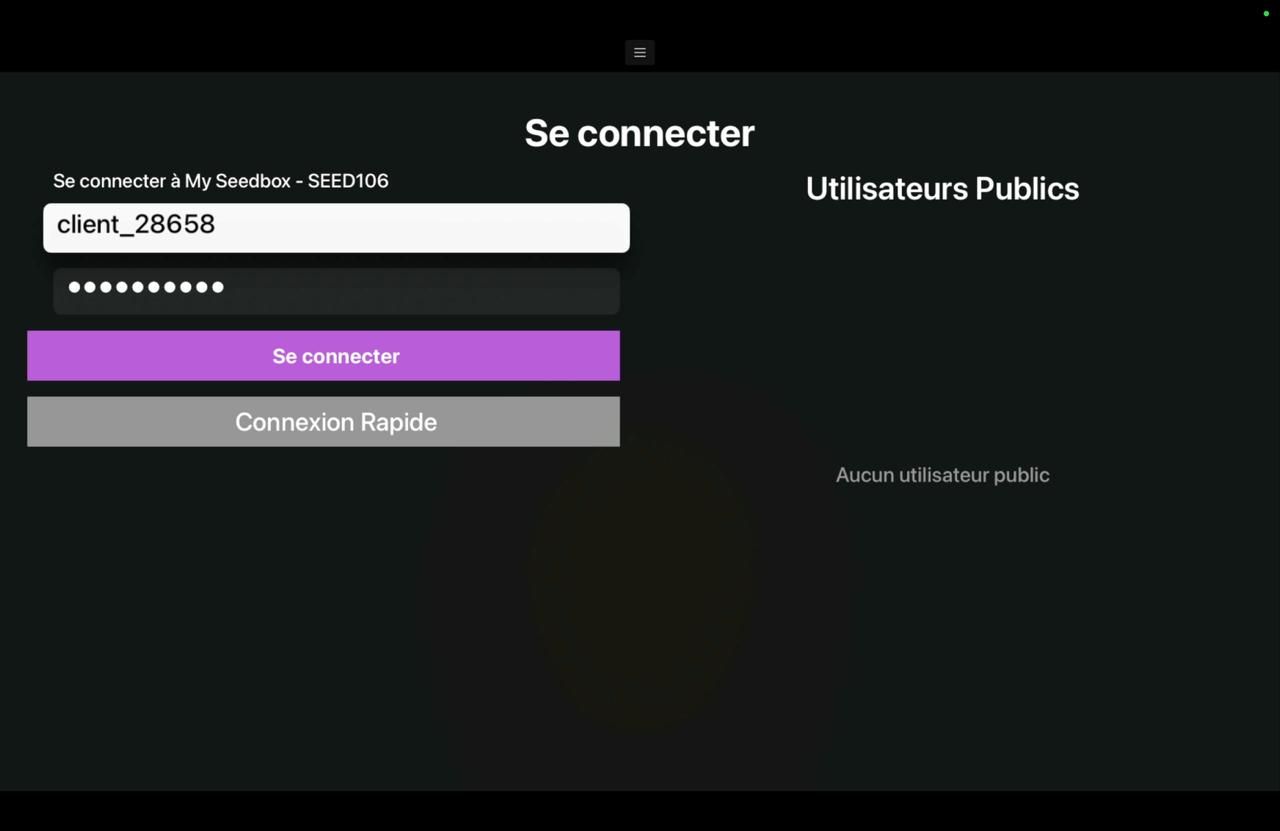
Enter your credentials:
- Username: always starts with the prefix
client_XXX - Password: available on your My-Seedbox dashboard
Once the fields are filled in, click Sign In.
Method 2: Quick Connect (recommended)#
To avoid having to type your password, you can use Quick Connect. To do so, click the Quick Connect button with your remote:
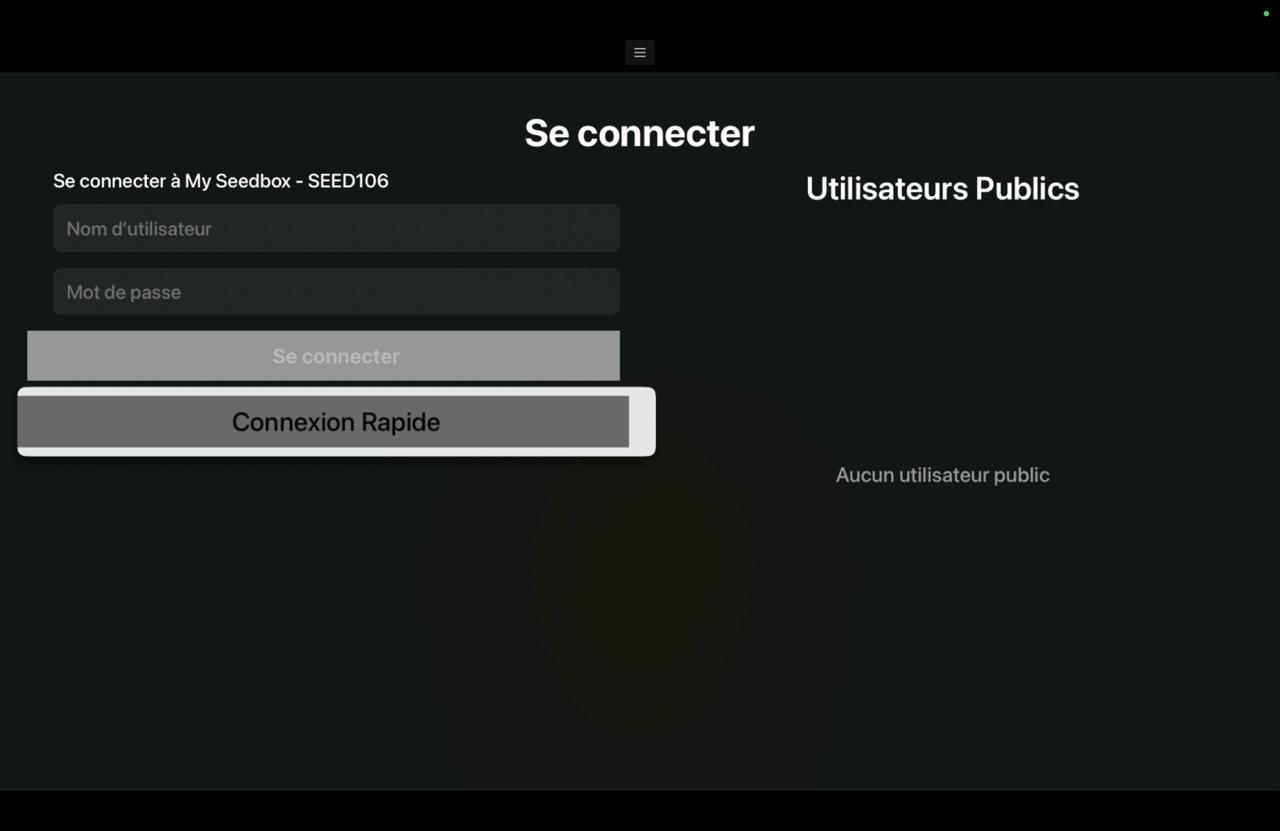
You will then get a quick connect code:

This code can be entered directly in the My-Seedbox customer area in the Jellyfin section to allow you to sign in without a password:
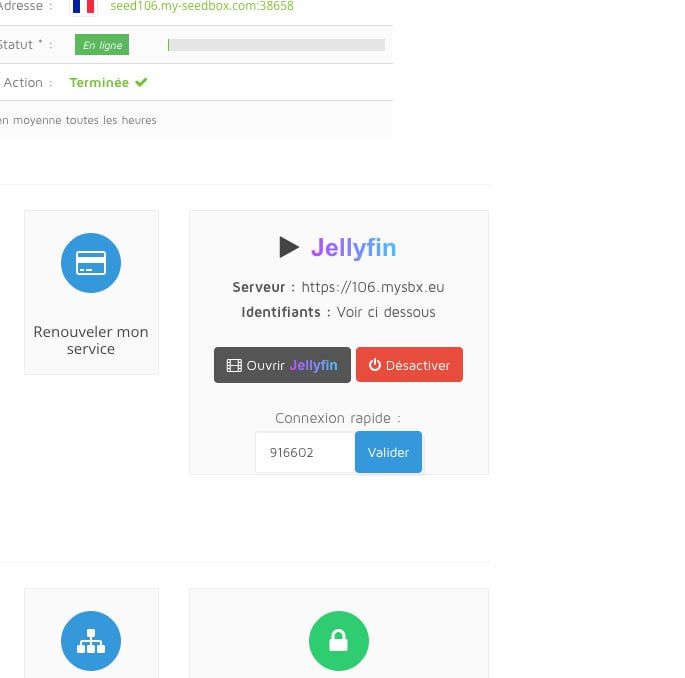
Once the code has been entered in the customer area, you will receive a confirmation message:

Step 4: Accessing your library#
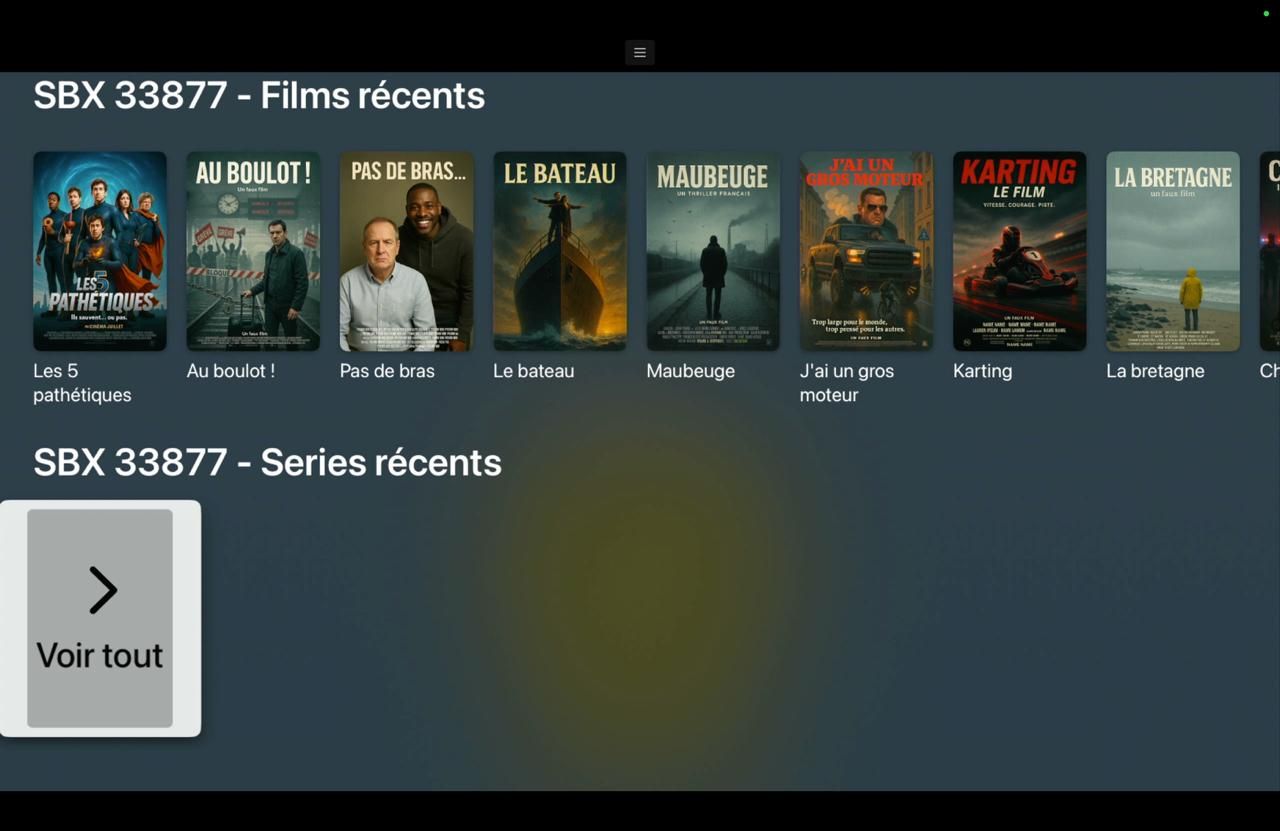
Congratulations! You are now signed in and can access the content in your Jellyfin library:
Navigating the library#
Use your Apple TV remote to navigate your library:
- Touchpad: Move between items
- Center button: Select an item
- Menu button: Go back
Playing videos#
Select the content you want and press the center button on your remote to view the details and start playback.
Your content is now ready to be watched on your Apple TV!